

Knowledge Center
Raspberry Pi 5 met AI HAT+2
Inleiding #
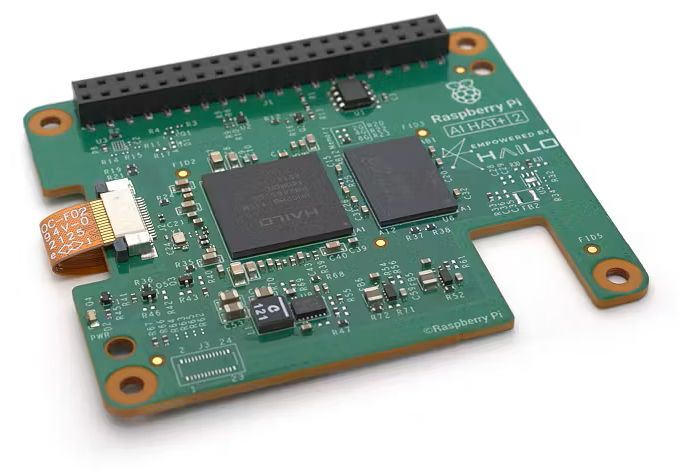
Hieronder vind je een tutorial/how-to en hands-on ervaring van de nieuwe AI HAT+ 2 (Hailo H10), de HAT fungeert net als zijn voorloper als additionele NPU rekenkracht, maar deze versie van de HAT heeft nu ook 8GB onboard memory, waarmee extra functionaliteit zoals AI LLM modellen gerealiseerd kunnen worden.
About
The Raspberry Pi AI HAT+ 2 is an expansion board for Raspberry Pi 5 designed to run generative AI and advanced AI inference locally. It is suitable for developers, researchers, and professional edge AI applications that require high on-device performance.
The board features a powerful Hailo-10H AI accelerator optimized for generative AI workloads such as large language models (LLM) and vision-language models (VLM). Using the PCIe interface of the Raspberry Pi 5, AI tasks are processed locally with low latency and no cloud dependency.
With dedicated 8GB onboard memory, the AI HAT+ 2 supports larger models and more complex AI applications within the Raspberry Pi ecosystem. It is suitable for both experimental AI development and production-oriented edge AI solutions.
Key Specifications
- Hailo-10H neural network accelerator
- AI performance: up to 40 TOPS (INT4)
- 8 GB onboard LPDDR4X-4267 SDRAM
- PCI Express attachment; Raspberry Pi 5 only
- Vision performance positioned as similar to the 26 TOPS AI HAT+
- Accelerates selected LLMs and VLMs
- Fully local AI processing
Software stack Hailo 10H #
Een tutorial is hier te vinden: https://www.raspberrypi.com/documentation/computers/ai.html
Bij de eerste keer opstarten (zonder drivers etc) is de dmesg:
[    5.547922] hailo: Init module. driver version 4.20.0
[    5.549922] hailo 0001:01:00.0: Probing on: 1e60:45c4...
[    5.549930] hailo 0001:01:00.0: Probing: Allocate memory for device extension, 13184
[    5.549947] hailo 0001:01:00.0: enabling device (0000 -> 0002)
[    5.549952] hailo 0001:01:00.0: Probing: Device enabled
[    5.549970] hailo 0001:01:00.0: Probing: mapped bar 0 - 000000009e57b433 16384
[    5.549976] hailo 0001:01:00.0: Probing: mapped bar 2 - 000000003a29c9e7 4096
[    5.549979] hailo 0001:01:00.0: Probing: mapped bar 4 - 0000000012180204 16384
[    5.549983] hailo 0001:01:00.0: Probing: Setting max_desc_page_size to 16384, (page_size=16384)
[    5.549992] hailo 0001:01:00.0: Probing: Enabled 64 bit dma
[    5.549994] hailo 0001:01:00.0: Probing: Using userspace allocated vdma buffers
[    5.549997] hailo 0001:01:00.0: Disabling ASPM L0s
[    5.550000] hailo 0001:01:00.0: Successfully disabled ASPM L0s
[    5.550116] hailo 0001:01:00.0: Writing file hailo/hailo10h/customer_certificate.bin
[    5.555756] Failed to write file hailo/hailo10h/customer_certificate.bin
[    5.555767] hailo 0001:01:00.0: Failed writing SOC FIRST_STAGE firmware files. err -2
[    5.555771] hailo 0001:01:00.0: FW loaded, took 5 ms
[    5.564598] hailo 0001:01:00.0: Firmware load failed
[    5.564604] hailo 0001:01:00.0: Failed activating board -2
[    5.564621] hailo 0001:01:00.0: probe with driver hailo failed with error -2
Zorg dat je OS + firmware up-to-date is
Voer deze commando’s up zodat je systeem up-to-date is:
sudo apt update
sudo apt full-upgrade -y
sudo rpi-eeprom-update -a
sudo reboot
PCIe gen3
PCIe gen3 aanzetten is niet nodig, dit gaat automatisch:
If you’re using an AI Kit, we highly recommend that you enable PCIe Gen 3.0. You can skip this for AI HAT+ and AI HAT+ 2 because the setting is automatically applied.
Installeer de juiste Hailo stack voor AI HAT+ 2 (Hailo-10H)
- The Hailo kernel device driver and firmware.
- Hailo RT middleware software.
- Hailo Tappas core post-processing libraries.
- Prevent kernel / DKMS mismatch
sudo apt install -y dkms
sudo apt install -y hailo-h10-all
sudo dkms autoinstall
sudo reboot
Controleer na reboot of de AI HAT+ 2 gevonden wordt:
dmesg | grep -i hailo
[    5.670190] hailo1x_pci: loading out-of-tree module taints kernel.
[    5.670755] hailo1x: Init module. driver version 5.1.1
[    5.670829] hailo1x 0001:01:00.0: Probing on: 1e60:45c4...
[    5.670832] hailo1x 0001:01:00.0: Probing: Allocate memory for device extension, 11240
[    5.670847] hailo1x 0001:01:00.0: enabling device (0000 -> 0002)
[    5.670853] hailo1x 0001:01:00.0: Probing: Device enabled
[    5.670879] hailo1x 0001:01:00.0: Probing: mapped bar 0 - 00000000ec2d822e 16384
[    5.670886] hailo1x 0001:01:00.0: Probing: mapped bar 2 - 00000000001b021f 4096
[    5.670891] hailo1x 0001:01:00.0: Probing: mapped bar 4 - 00000000f63ca706 16384
[    5.670896] hailo1x 0001:01:00.0: Probing: Setting max_desc_page_size to 4096, (PAGE_SIZE=16384)
[    5.670913] hailo1x 0001:01:00.0: Probing: Enabled 64 bit dma
[    5.670917] hailo1x 0001:01:00.0: Disabling ASPM L0s
[    5.670920] hailo1x 0001:01:00.0: Successfully disabled ASPM L0s
[    5.671039] hailo1x 0001:01:00.0: Writing file hailo/hailo10h/customer_certificate.bin
[    5.683697] hailo1x 0001:01:00.0: File hailo/hailo10h/customer_certificate.bin written successfully
[    5.683704] hailo1x 0001:01:00.0: Writing file hailo/hailo10h/scu_fw.bin
[    5.750966] hailo1x 0001:01:00.0: File hailo/hailo10h/scu_fw.bin written successfully
[    5.806580] hailo1x 0001:01:00.0: Board SKU-ID is: 6
[    5.806589] hailo1x 0001:01:00.0: Writing file hailo/hailo10h/u-boot-6.dtb.signed
[    5.817737] hailo1x 0001:01:00.0: File hailo/hailo10h/u-boot-6.dtb.signed written successfully
[    5.912882] hailo1x 0001:01:00.0: Reading firmware file hailo/hailo10h/u-boot-spl.bin
[    5.914451] hailo1x 0001:01:00.0: Reading firmware file hailo/hailo10h/u-boot-tfa.itb
[    5.914471] hailo1x 0001:01:00.0: Reading firmware file hailo/hailo10h/fitImage
[    6.038804] hailo1x 0001:01:00.0: Reading firmware file hailo/hailo10h/image-fs
[    6.940493] hailo1x 0001:01:00.0: Firmware file programmed successfully
[    6.940500] hailo1x 0001:01:00.0: Firmware file index 0 programmed successfully
[    6.942642] hailo1x 0001:01:00.0: Firmware file programmed successfully
[    6.942645] hailo1x 0001:01:00.0: Firmware file index 2 programmed successfully
[    6.960349] hailo1x 0001:01:00.0: Firmware file programmed successfully
[    6.960355] hailo1x 0001:01:00.0: Firmware file index 3 programmed successfully
[    6.960358] hailo1x 0001:01:00.0: Firmware batch programming completed for stage 2
[    7.078081] hailo1x 0001:01:00.0: vDMA transfer completed, triggering boot
[    9.306207] hailo1x 0001:01:00.0: SOC Firmware Batch loaded successfully
[    9.306212] hailo1x 0001:01:00.0: Firmware loaded in 3635 ms
[    9.318384] hailo1x 0001:01:00.0: Probing: Added board 1e60-45c4, /dev/hailo0
lsmod | grep hailo
hailo1x_pci 147456 0hailortcli scan
Hailo Devices:
[-] Device: 0001:01:00.0
hailortcli fw-control identify
Executing on device: 0001:01:00.0
Identifying board
Control Protocol Version: 2
Firmware Version: 5.1.1 (release,app)
Logger Version: 0
Device Architecture: HAILO10H
lspci -vv | grep -A20 -i hailo
0001:01:00.0 Co-processor: Hailo Technologies Ltd. Hailo-10H AI Processor (rev 01)
        Subsystem: Hailo Technologies Ltd. Hailo-10H AI Processor
        Control: I/O- Mem+ BusMaster+ SpecCycle- MemWINV- VGASnoop- ParErr- Stepping- SERR- FastB2B- DisINTx+
        Status: Cap+ 66MHz- UDF- FastB2B- ParErr- DEVSEL=fast >TAbort- <TAbort- <MAbort- >SERR- <PERR- INTx-
        Latency: 0
        Interrupt: pin A routed to IRQ 187
        Region 0: Memory at 1800000000 (64-bit, prefetchable) [size=16K]
        Region 2: Memory at 1800008000 (64-bit, prefetchable) [size=4K]
        Region 4: Memory at 1800004000 (64-bit, prefetchable) [size=16K]
        Capabilities: <access denied>
        Kernel driver in use: hailo1x
        Kernel modules: hailo1x_pci
Je ziet ook staan “Capabilities: <access denied>“, gebruik daarom ook sudo en het adres om de volledige gegevens te zien:
sudo lspci -vv -s 0001:01:00.0
0001:01:00.0 Co-processor: Hailo Technologies Ltd. Hailo-10H AI Processor (rev 01)
        Subsystem: Hailo Technologies Ltd. Hailo-10H AI Processor
        Control: I/O- Mem+ BusMaster+ SpecCycle- MemWINV- VGASnoop- ParErr- Stepping- SERR- FastB2B- DisINTx+
        Status: Cap+ 66MHz- UDF- FastB2B- ParErr- DEVSEL=fast >TAbort- <TAbort- <MAbort- >SERR- <PERR- INTx-
        Latency: 0
        Interrupt: pin A routed to IRQ 187
        Region 0: Memory at 1800000000 (64-bit, prefetchable) [size=16K]
        Region 2: Memory at 1800008000 (64-bit, prefetchable) [size=4K]
        Region 4: Memory at 1800004000 (64-bit, prefetchable) [size=16K]
        Capabilities: [80] Express (v2) Endpoint, IntMsgNum 0
                DevCap: MaxPayload 256 bytes, PhantFunc 0, Latency L0s <64ns, L1 unlimited
                        ExtTag+ AttnBtn- AttnInd- PwrInd- RBE+ FLReset+ SlotPowerLimit 0W TEE-IO-
                DevCtl: CorrErr+ NonFatalErr+ FatalErr+ UnsupReq+
                        RlxdOrd+ ExtTag+ PhantFunc- AuxPwr- NoSnoop+ FLReset-
                        MaxPayload 256 bytes, MaxReadReq 512 bytes
                DevSta: CorrErr- NonFatalErr- FatalErr- UnsupReq- AuxPwr- TransPend-
                LnkCap: Port #0, Speed 8GT/s, Width x4, ASPM L0s L1, Exit Latency L0s <1us, L1 <2us
                        ClockPM- Surprise- LLActRep- BwNot- ASPMOptComp+
                LnkCtl: ASPM L1 Enabled; RCB 64 bytes, LnkDisable- CommClk+
                        ExtSynch- ClockPM- AutWidDis- BWInt- AutBWInt-
                LnkSta: Speed 8GT/s, Width x1 (downgraded)
                        TrErr- Train- SlotClk+ DLActive- BWMgmt- ABWMgmt-
                DevCap2: Completion Timeout: Not Supported, TimeoutDis+ NROPrPrP- LTR+
                         10BitTagComp- 10BitTagReq- OBFF Not Supported, ExtFmt+ EETLPPrefix-
                         EmergencyPowerReduction Not Supported, EmergencyPowerReductionInit-
                         FRS- TPHComp- ExtTPHComp-
                         AtomicOpsCap: 32bit- 64bit- 128bitCAS-
                DevCtl2: Completion Timeout: 50us to 50ms, TimeoutDis-
                         AtomicOpsCtl: ReqEn-
                         IDOReq- IDOCompl- LTR+ EmergencyPowerReductionReq-
                         10BitTagReq- OBFF Disabled, EETLPPrefixBlk-
                LnkCap2: Supported Link Speeds: 2.5-8GT/s, Crosslink- Retimer- 2Retimers- DRS-
                LnkCtl2: Target Link Speed: 8GT/s, EnterCompliance- SpeedDis-
                         Transmit Margin: Normal Operating Range, EnterModifiedCompliance- ComplianceSOS-
                         Compliance Preset/De-emphasis: -6dB de-emphasis, 0dB preshoot
                LnkSta2: Current De-emphasis Level: -6dB, EqualizationComplete+ EqualizationPhase1+
                         EqualizationPhase2+ EqualizationPhase3+ LinkEqualizationRequest-
                         Retimer- 2Retimers- CrosslinkRes: unsupported
        Capabilities: [e0] MSI: Enable+ Count=1/1 Maskable- 64bit+
                Address: 000000fffffff000  Data: 0008
        Capabilities: [f8] Power Management version 3
                Flags: PMEClk- DSI- D1- D2- AuxCurrent=0mA PME(D0-,D1-,D2-,D3hot+,D3cold-)
                Status: D0 NoSoftRst+ PME-Enable- DSel=0 DScale=1 PME-
        Capabilities: [100 v1] Vendor Specific Information: ID=1556 Rev=1 Len=008 <?>
        Capabilities: [108 v1] Latency Tolerance Reporting
                Max snoop latency: 0ns
                Max no snoop latency: 0ns
        Capabilities: [110 v1] L1 PM Substates
                L1SubCap: PCI-PM_L1.2+ PCI-PM_L1.1+ ASPM_L1.2+ ASPM_L1.1+ L1_PM_Substates+
                          PortCommonModeRestoreTime=10us PortTPowerOnTime=10us
                L1SubCtl1: PCI-PM_L1.2- PCI-PM_L1.1- ASPM_L1.2- ASPM_L1.1-
                           T_CommonMode=0us LTR1.2_Threshold=0ns
                L1SubCtl2: T_PwrOn=10us
        Capabilities: [128 v1] Alternative Routing-ID Interpretation (ARI)
                ARICap: MFVC- ACS-, Next Function: 0
                ARICtl: MFVC- ACS-, Function Group: 0
        Capabilities: [200 v2] Advanced Error Reporting
                UESta:  DLP- SDES- TLP- FCP- CmpltTO- CmpltAbrt- UnxCmplt- RxOF- MalfTLP-
                        ECRC- UnsupReq- ACSViol- UncorrIntErr- BlockedTLP- AtomicOpBlocked- TLPBlockedErr-
                        PoisonTLPBlocked- DMWrReqBlocked- IDECheck- MisIDETLP- PCRC_CHECK- TLPXlatBlocked-
                UEMsk:  DLP- SDES- TLP- FCP- CmpltTO- CmpltAbrt- UnxCmplt- RxOF- MalfTLP-
                        ECRC- UnsupReq- ACSViol- UncorrIntErr+ BlockedTLP- AtomicOpBlocked- TLPBlockedErr-
                        PoisonTLPBlocked- DMWrReqBlocked- IDECheck- MisIDETLP- PCRC_CHECK- TLPXlatBlocked-
                UESvrt: DLP+ SDES- TLP- FCP+ CmpltTO- CmpltAbrt- UnxCmplt- RxOF+ MalfTLP+
                        ECRC- UnsupReq- ACSViol- UncorrIntErr+ BlockedTLP- AtomicOpBlocked- TLPBlockedErr-
                        PoisonTLPBlocked- DMWrReqBlocked- IDECheck- MisIDETLP- PCRC_CHECK- TLPXlatBlocked-
                CESta:  RxErr- BadTLP- BadDLLP- Rollover- Timeout- AdvNonFatalErr- CorrIntErr- HeaderOF-
                CEMsk:  RxErr- BadTLP- BadDLLP- Rollover- Timeout- AdvNonFatalErr+ CorrIntErr+ HeaderOF-
                AERCap: First Error Pointer: 00, ECRCGenCap+ ECRCGenEn- ECRCChkCap+ ECRCChkEn-
                        MultHdrRecCap- MultHdrRecEn- TLPPfxPres- HdrLogCap-
                HeaderLog: 00000000 00000000 00000000 00000000
        Capabilities: [300 v1] Secondary PCI Express
                LnkCtl3: LnkEquIntrruptEn- PerformEqu-
                LaneErrStat: 0
        Kernel driver in use: hailo1x
        Kernel modules: hailo1x_pci
Controleren of PCIe Gen3 gebruikt wordt
sudo lspci -vv -s 0001:01:00.0 | grep -i speed
                LnkCap: Port #0, Speed 8GT/s, Width x4, ASPM L0s L1, Exit Latency L0s <1us, L1 <2us
                LnkSta: Speed 8GT/s, Width x1 (downgraded)
                LnkCap2: Supported Link Speeds: 2.5-8GT/s, Crosslink- Retimer- 2Retimers- DRS-
                LnkCtl2: Target Link Speed: 8GT/s, EnterCompliance- SpeedDis-
Interpretatie:
De Hailo-8 is x4-capable, maar draait hier netjes op x1 Gen3
Speed 8GT/s → PCIe Gen 3 actief
Width x1 (downgraded) → ook correct (De Raspberry Pi 5 heeft maar 1 PCIe lane)
Hailo-ollama installeren voor LLM’s #
Om gebruik te maken van Large Language Models (LLMs) wordt er gebruik gemaakt van de Hailo AI model zoo:
website: https://github.com/hailo-ai/hailo_model_zoo
Download:
wget https://dev-public.hailo.ai/2025_12/Hailo10/hailo_gen_ai_model_zoo_5.1.1_arm64.debInstalleren:
sudo dpkg -i hailo_gen_ai_model_zoo_5.1.1_arm64.deb
sudo rm hailo_gen_ai_model_zoo_5.1.1_arm64.deb
Starten van de hailo ollama server:
hailo-ollama
of in de achtergrond: hailo-ollama &
 I |2026-01-27 19:52:18 1769539938177876| MyApp:Server running on port 8000
 I |2026-01-27 19:52:59 1769539979390056| list_models:got 5 models in store
Lijst van de aanwezige modellen (op moment van schrijven 2026-JAN):
curl –silent http://localhost:8000/hailo/v1/list
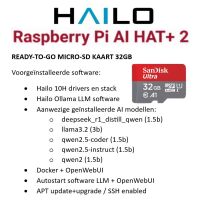
{"models":["deepseek_r1_distill_qwen:1.5b","llama3.2:3b","qwen2.5-coder:1.5b","qwen2.5-instruct:1.5b","qwen2:1.5b"]}- deepseek_r1_distill_qwen (1.5B)
- llama3.2 (3B)
- qwen2.5-coder (1.5B)
- qwen2.5-instruct (1.5B)
- qwen2 (1.5B)
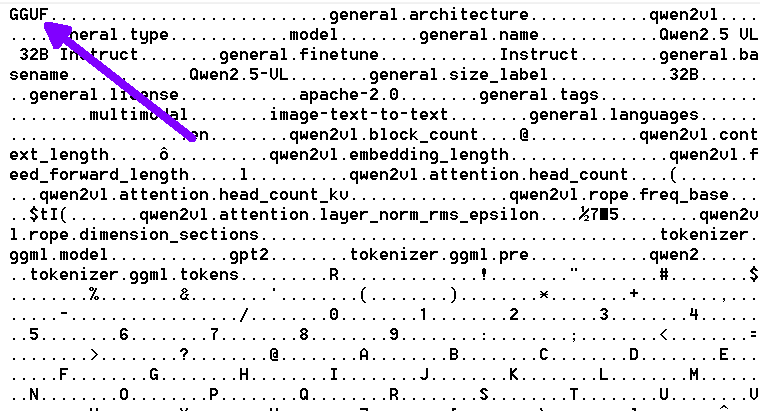
Let op: dit zijn HEF bestanden (zie headers hieronder), speciaal gemaakt voor HAILO NPU’s
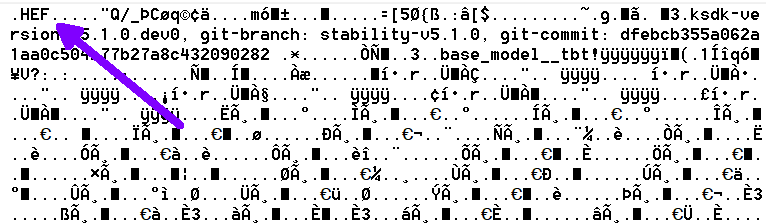
dus je kan niet zo maar GGUF (LLAMA.CCP / LM Studio) bestanden gebruiken:
Downloaden van de AI modellen #
Gebruik deze CURL commando’s om de AI modellen te downloaden:
qwen2.5-instruct:1.5b (2.36 GB)
curl –silent http://localhost:8000/api/pull -H ‘Content-Type: application/json’ -d ‘{ “model”: “qwen2.5-instruct:1.5b”, “stream” : true }’
{"status":"pulling","digest":"5310176848638505fbc28add04ba60c97abe345cdb0ec7e3b8ffaa4b0a8c65dd","total":2359716464,"completed":2357485044}qwen2:1.5b (1.68 GB)
curl –silent http://localhost:8000/api/pull -H ‘Content-Type: application/json’ -d ‘{ “model”: “qwen2:1.5b”, “stream” : true }’
{"status":"pulling","digest":"ab056548c60945cdf4fb30ca43fc7aeed2b9ffc751ad8d4c201dc4c4ab31e86a","total":1678182931,"completed":1543446004}qwen2.5-coder:1.5b (1.76GB)
curl –silent http://localhost:8000/api/pull -H ‘Content-Type: application/json’ -d ‘{ “model”: “qwen2.5-coder:1.5b”, “stream” : true }’
{"status":"pulling","digest":"88aa7633ebe3385452430ae19f2b459b5a00791cab035576a3262a41ec1350f5","total":1756203793,"completed":1755885044}deepseek_r1_distill_qwen:1.5b (2.38 GB)
curl –silent http://localhost:8000/api/pull -H ‘Content-Type: application/json’ -d ‘{ “model”: “deepseek_r1_distill_qwen:1.5b”, “stream” : true }’
{"status":"pulling","digest":"9c4506dda44d0a1730d939d4049a3cbf72d5179a88762ca551363db087adb38f","total":2371044685,"completed":2370547188}llama3.2:3b (3.37GB)
curl –silent http://localhost:8000/api/pull -H ‘Content-Type: application/json’ -d ‘{ “model”: “llama3.2:3b”, “stream” : true }’
{"status":"pulling","digest":"1129f5f8384e4e45c5890104dc4ec1aee77e800ce1484ddc3aa942399aada425","total":3370416230,"completed":3367853555}
{"status":"verifying sha256 digest"}
{"status":"success"}
Waar worden bestanden neergezet?
Je kan een eenvoudige scan gebruiken om grote bestanden op het systeem te zoeken:
sudo find / -type f -size +3000M 2>/dev/null
/usr/share/hailo-ollama/models/blob/sha256_1129f5f8384e4e45c5890104dc4ec1aee77e800ce1484ddc3aa942399aada425Model inladen en laten antwoorden #
Let op: De eerste keer inladen van het model duurt altijd even 10-20 sec), zodra het model in het geheugen staat blijft hij daar ongeveer 20-30 min inzitten (instelbaar)
curl --silent http://localhost:8000/api/chat \
  -H 'Content-Type: application/json' \
  -d '{
    "model":"llama3.2:3b",
    "messages":[
      {"role":"system","content":"Antwoord kort. Geen extra uitleg, alleen de vertaling."},
      {"role":"user","content":"Translate to French: The cat is on the table."}
    ]
  }'
Let op: het eerste antwoord kan wat langer zijn omdat het model “warmgedraaid” moet worden, na een evt 2e poging is het model warmgedraaid en reageert het zoals het moet!
Output:
{"model":"llama3.2:3b","created_at":"2026-01-27T19:36:24.165805380Z","message":{"role":"assistant","content":"Le"},"done":false}
{"model":"llama3.2:3b","created_at":"2026-01-27T19:36:24.542732197Z","message":{"role":"assistant","content":" chat"},"done":false}
{"model":"llama3.2:3b","created_at":"2026-01-27T19:36:24.917177845Z","message":{"role":"assistant","content":" est"},"done":false}
{"model":"llama3.2:3b","created_at":"2026-01-27T19:36:25.291979236Z","message":{"role":"assistant","content":" sur"},"done":false}
{"model":"llama3.2:3b","created_at":"2026-01-27T19:36:25.666712498Z","message":{"role":"assistant","content":" la"},"done":false}
{"model":"llama3.2:3b","created_at":"2026-01-27T19:36:26.041356055Z","message":{"role":"assistant","content":" table"},"done":false}
{"model":"llama3.2:3b","created_at":"2026-01-27T19:36:26.414273153Z","message":{"role":"assistant","content":"."},"done":false}
{"model":"llama3.2:3b","created_at":"2026-01-27T19:36:26.788718284Z","message":{"role":"assistant","content":""},"done":true,"done_reason":"stop","total_duration":3635289724,"eval_count":7}
Wil je een kleine benchmark houden dan kan je time voor curl zetten:
qwen2.5-instruct:1.5b
time curl --silent http://localhost:8000/api/chat \
  -H 'Content-Type: application/json' \
  -d '{
    "model":"qwen2.5-instruct:1.5b",
    "messages":[
      {"role":"system","content":"Antwoord kort. Geen extra uitleg, alleen de vertaling."},
      {"role":"user","content":"Translate to French: The cat is on the table."}
    ]
  }'
output:
{"model":"qwen2.5-instruct:1.5b","created_at":"2026-01-27T20:17:00.935294175Z","message":{"role":"assistant","content":"Le"},"done":false}
{"model":"qwen2.5-instruct:1.5b","created_at":"2026-01-27T20:17:01.080486118Z","message":{"role":"assistant","content":" chat"},"done":false}
{"model":"qwen2.5-instruct:1.5b","created_at":"2026-01-27T20:17:01.223421771Z","message":{"role":"assistant","content":" est"},"done":false}
{"model":"qwen2.5-instruct:1.5b","created_at":"2026-01-27T20:17:01.367816062Z","message":{"role":"assistant","content":" sur"},"done":false}
{"model":"qwen2.5-instruct:1.5b","created_at":"2026-01-27T20:17:01.511326515Z","message":{"role":"assistant","content":" la"},"done":false}
{"model":"qwen2.5-instruct:1.5b","created_at":"2026-01-27T20:17:01.654345447Z","message":{"role":"assistant","content":" table"},"done":false}
{"model":"qwen2.5-instruct:1.5b","created_at":"2026-01-27T20:17:01.797960493Z","message":{"role":"assistant","content":"."},"done":false}
{"model":"qwen2.5-instruct:1.5b","created_at":"2026-01-27T20:17:01.942063116Z","message":{"role":"assistant","content":""},"done":true,"done_reason":"stop","total_duration":1376922606,"eval_count":7}

real    0m1.428s
user    0m0.011s
sys     0m0.000s
llama3.2:3b
time curl --silent http://localhost:8000/api/chat \
  -H 'Content-Type: application/json' \
  -d '{
    "model":"llama3.2:3b",
    "messages":[
      {"role":"system","content":"Antwoord kort. Geen extra uitleg, alleen de vertaling."},
      {"role":"user","content":"Translate to French: The cat is on the table."}
    ]
  }'
output:
{"model":"llama3.2:3b","created_at":"2026-01-27T19:40:53.860338095Z","message":{"role":"assistant","content":"Le"},"done":false}
{"model":"llama3.2:3b","created_at":"2026-01-27T19:40:54.236949214Z","message":{"role":"assistant","content":" chat"},"done":false}
{"model":"llama3.2:3b","created_at":"2026-01-27T19:40:54.611330906Z","message":{"role":"assistant","content":" est"},"done":false}
{"model":"llama3.2:3b","created_at":"2026-01-27T19:40:54.986325770Z","message":{"role":"assistant","content":" \u00E0"},"done":false}
{"model":"llama3.2:3b","created_at":"2026-01-27T19:40:55.360625906Z","message":{"role":"assistant","content":" la"},"done":false}
{"model":"llama3.2:3b","created_at":"2026-01-27T19:40:55.733907792Z","message":{"role":"assistant","content":" table"},"done":false}
{"model":"llama3.2:3b","created_at":"2026-01-27T19:40:56.108242446Z","message":{"role":"assistant","content":"."},"done":false}
{"model":"llama3.2:3b","created_at":"2026-01-27T19:40:56.481944836Z","message":{"role":"assistant","content":""},"done":true,"done_reason":"stop","total_duration":3633159472,"eval_count":7}

real    0m3.719s
user    0m0.004s
sys     0m0.007s
Zien welk model is geladen #
Met onderstaand commando kan je zien welk model momenteel in het geheugen is geladen:
curl -s http://localhost:8000/api/ps
{"models":[{"name":"qwen2.5-instruct:1.5b","model":"qwen2.5-instruct:1.5b","modified_at":"2026-01-27T19:51:36.793030911Z","size":2359716464,"details":{"parent_model":"","format":"hef","family":"qwen2.5","families":["qwen2.5"],"parameter_size":"1.5B","quantization_level":"Q4_0"},"expires_at":"2026-01-27T20:17:33.991856479Z"}]}of
{"models":[{"name":"llama3.2:3b","model":"llama3.2:3b","modified_at":"2026-01-27T19:05:37.661276837Z","size":3370416230,"details":{"parent_model":"","format":"hef","family":"llama3.2","families":["llama3.2"],"parameter_size":"3B","quantization_level":"Q4_0"},"expires_at":"2026-02-01T13:51:05.177969585Z"}]}Hailo LLM server #
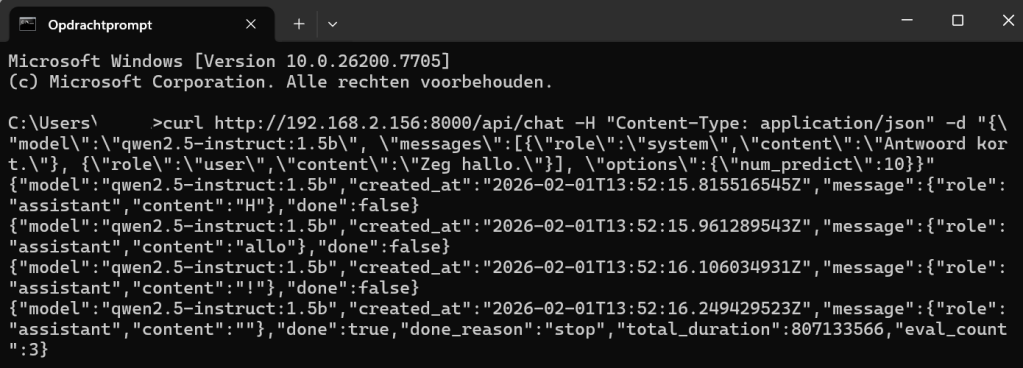
Standaard start er met Hailo LLM ook ingebouwde openAI achtige server, op de browser en ga naar het IP adres van de RPI5 (in het zelfde LAN netwerk) dan kan je testen of je deze kan zien. ga naar [IP]:8000, bijvoorbeeld:
http://192.168.2.156:8000/de output is:
hailo-ollama is runningOpen bijvoorbeeld een command window in Windows en test via curl:
curl http://192.168.2.156:8000/api/chat -H "Content-Type: application/json" -d "{\"model\":\"qwen2.5-instruct:1.5b\", \"messages\":[{\"role\":\"system\",\"content\":\"Antwoord kort.\"}, {\"role\":\"user\",\"content\":\"Zeg hallo.\"}], \"options\":{\"num_predict\":10}}"output:
Autostarten hailo-ollama bij boot #
Kijk eerst even welke hailo-ollama gebruikt wordt of waar deze staat:
which hailo-ollama
/usr/bin/hailo-ollamaOm hailo-ollama te starten bij boot kun je een service aanmaken:
sudo nano /etc/systemd/system/hailo-ollama.service
inhoud:
[Unit]
Description=Hailo Ollama Server
After=network.target

[Service]
Type=simple
ExecStart=/usr/bin/hailo-ollama serve
Restart=always
RestartSec=3
User=pi
WorkingDirectory=/home/pi
Environment=OLLAMA_HOST=0.0.0.0:8000

[Install]
WantedBy=multi-user.target
Opnieuw inladen en aanzetten:
sudo systemctl daemon-reload
sudo systemctl enable hailo-ollama
Installatie van Docker #
We installeren Open WebUI vanuit een docker container, daarvoor moeten we eerst docker installeren.
Add Docker’s official GPG key:
sudo apt install ca-certificates curl
ca-certificates is already the newest version (20250419).
curl is already the newest version (8.14.1-2+deb13u2).
Summary:
  Upgrading: 0, Installing: 0, Removing: 0, Not Upgrading: 0
sudo install -m 0755 -d /etc/apt/keyrings
sudo curl -fsSL https://download.docker.com/linux/debian/gpg -o /etc/apt/keyrings/docker.asc
sudo chmod a+r /etc/apt/keyrings/docker.asc
Add the repository to APT sources (trixie):
sudo tee /etc/apt/sources.list.d/docker.sources > /dev/null <<'EOF'
Types: deb
URIs: https://download.docker.com/linux/debian
Suites: trixie
Components: stable
Architectures: arm64
Signed-By: /etc/apt/keyrings/docker.asc
EOF
sudo apt update
Hit:1 http://deb.debian.org/debian trixie InRelease
Get:2 http://deb.debian.org/debian trixie-updates InRelease [47.3 kB]
Hit:3 http://archive.raspberrypi.com/debian trixie InRelease
Get:4 http://deb.debian.org/debian-security trixie-security InRelease [43.4 kB]
Get:5 https://download.docker.com/linux/debian trixie InRelease [32.5 kB]
Get:6 http://deb.debian.org/debian-security trixie-security/main armhf Packages [92.2 kB]
Get:7 https://download.docker.com/linux/debian trixie/stable arm64 Packages [25.2 kB]
Get:8 http://deb.debian.org/debian-security trixie-security/main arm64 Packages [98.2 kB]
Fetched 339 kB in 0s (1,573 kB/s)
3 packages can be upgraded. Run 'apt list --upgradable' to see them.
Installeer docker nu met:
sudo apt install -y docker-ce docker-ce-cli containerd.io docker-buildx-plugin docker-compose-plugin
Installing:
  containerd.io  docker-buildx-plugin  docker-ce  docker-ce-cli  docker-compose-plugin

Installing dependencies:
  docker-ce-rootless-extras  iptables  libip4tc2  libip6tc2  libslirp0  pigz  slirp4netns

Suggested packages:
  cgroupfs-mount  | cgroup-lite  docker-model-plugin  firewalld

Summary:
  Upgrading: 0, Installing: 12, Removing: 0, Not Upgrading: 3
  Download size: 81.1 MB
  Space needed: 361 MB / 10.5 GB available

Continue? [Y/n] Y
Get:1 http://deb.debian.org/debian trixie/main arm64 libip4tc2 arm64 1.8.11-2 [19.6 kB]
Get:2 http://deb.debian.org/debian trixie/main arm64 libip6tc2 arm64 1.8.11-2 [19.8 kB]
Get:3 http://deb.debian.org/debian trixie/main arm64 iptables arm64 1.8.11-2 [354 kB]
Get:4 http://deb.debian.org/debian trixie/main arm64 pigz arm64 2.8-1+b1 [56.3 kB]
Get:5 https://download.docker.com/linux/debian trixie/stable arm64 containerd.io arm64 2.2.1-1~debian.13~trixie [20.1 MB]
Get:6 http://deb.debian.org/debian trixie/main arm64 libslirp0 arm64 4.8.0-1+b1 [61.4 kB]
Get:7 http://deb.debian.org/debian trixie/main arm64 slirp4netns arm64 1.2.1-1.1 [38.4 kB]
Get:8 https://download.docker.com/linux/debian trixie/stable arm64 docker-ce-cli arm64 5:29.2.0-1~debian.13~trixie [14.7 MB]
Get:9 https://download.docker.com/linux/debian trixie/stable arm64 docker-ce arm64 5:29.2.0-1~debian.13~trixie [19.3 MB]
Get:10 https://download.docker.com/linux/debian trixie/stable arm64 docker-buildx-plugin arm64 0.30.1-1~debian.13~trixie [14.2 MB]
Get:11 https://download.docker.com/linux/debian trixie/stable arm64 docker-ce-rootless-extras arm64 5:29.2.0-1~debian.13~trixie [5,658 kB]
Get:12 https://download.docker.com/linux/debian trixie/stable arm64 docker-compose-plugin arm64 5.0.2-1~debian.13~trixie [6,644 kB]
Fetched 81.1 MB in 6s (12.7 MB/s)
Selecting previously unselected package containerd.io.
(Reading database ... 115966 files and directories currently installed.)
Preparing to unpack .../00-containerd.io_2.2.1-1~debian.13~trixie_arm64.deb ...
Unpacking containerd.io (2.2.1-1~debian.13~trixie) ...
Selecting previously unselected package docker-ce-cli.
Preparing to unpack .../01-docker-ce-cli_5%3a29.2.0-1~debian.13~trixie_arm64.deb ...
Unpacking docker-ce-cli (5:29.2.0-1~debian.13~trixie) ...
Selecting previously unselected package libip4tc2:arm64.
Preparing to unpack .../02-libip4tc2_1.8.11-2_arm64.deb ...
Unpacking libip4tc2:arm64 (1.8.11-2) ...
Selecting previously unselected package libip6tc2:arm64.
Preparing to unpack .../03-libip6tc2_1.8.11-2_arm64.deb ...
Unpacking libip6tc2:arm64 (1.8.11-2) ...
Selecting previously unselected package iptables.
Preparing to unpack .../04-iptables_1.8.11-2_arm64.deb ...
Unpacking iptables (1.8.11-2) ...
Selecting previously unselected package docker-ce.
Preparing to unpack .../05-docker-ce_5%3a29.2.0-1~debian.13~trixie_arm64.deb ...
Unpacking docker-ce (5:29.2.0-1~debian.13~trixie) ...
Selecting previously unselected package pigz.
Preparing to unpack .../06-pigz_2.8-1+b1_arm64.deb ...
Unpacking pigz (2.8-1+b1) ...
Selecting previously unselected package docker-buildx-plugin.
Preparing to unpack .../07-docker-buildx-plugin_0.30.1-1~debian.13~trixie_arm64.deb ...
Unpacking docker-buildx-plugin (0.30.1-1~debian.13~trixie) ...
Selecting previously unselected package docker-ce-rootless-extras.
Preparing to unpack .../08-docker-ce-rootless-extras_5%3a29.2.0-1~debian.13~trixie_arm64.deb ...
Unpacking docker-ce-rootless-extras (5:29.2.0-1~debian.13~trixie) ...
Selecting previously unselected package docker-compose-plugin.
Preparing to unpack .../09-docker-compose-plugin_5.0.2-1~debian.13~trixie_arm64.deb ...
Unpacking docker-compose-plugin (5.0.2-1~debian.13~trixie) ...
Selecting previously unselected package libslirp0:arm64.
Preparing to unpack .../10-libslirp0_4.8.0-1+b1_arm64.deb ...
Unpacking libslirp0:arm64 (4.8.0-1+b1) ...
Selecting previously unselected package slirp4netns.
Preparing to unpack .../11-slirp4netns_1.2.1-1.1_arm64.deb ...
Unpacking slirp4netns (1.2.1-1.1) ...
Setting up libip4tc2:arm64 (1.8.11-2) ...
Setting up libip6tc2:arm64 (1.8.11-2) ...
Setting up docker-buildx-plugin (0.30.1-1~debian.13~trixie) ...
Setting up containerd.io (2.2.1-1~debian.13~trixie) ...
Created symlink '/etc/systemd/system/multi-user.target.wants/containerd.service' → '/usr/lib/systemd/system/containerd.service'.
Setting up docker-compose-plugin (5.0.2-1~debian.13~trixie) ...
Setting up docker-ce-cli (5:29.2.0-1~debian.13~trixie) ...
Setting up libslirp0:arm64 (4.8.0-1+b1) ...
Setting up pigz (2.8-1+b1) ...
Setting up docker-ce-rootless-extras (5:29.2.0-1~debian.13~trixie) ...
Setting up slirp4netns (1.2.1-1.1) ...
Setting up iptables (1.8.11-2) ...
update-alternatives: using /usr/sbin/iptables-legacy to provide /usr/sbin/iptables (iptables) in auto mode
update-alternatives: using /usr/sbin/ip6tables-legacy to provide /usr/sbin/ip6tables (ip6tables) in auto mode
update-alternatives: using /usr/sbin/iptables-nft to provide /usr/sbin/iptables (iptables) in auto mode
update-alternatives: using /usr/sbin/ip6tables-nft to provide /usr/sbin/ip6tables (ip6tables) in auto mode
update-alternatives: using /usr/sbin/arptables-nft to provide /usr/sbin/arptables (arptables) in auto mode
update-alternatives: using /usr/sbin/ebtables-nft to provide /usr/sbin/ebtables (ebtables) in auto mode
Setting up docker-ce (5:29.2.0-1~debian.13~trixie) ...
Created symlink '/etc/systemd/system/multi-user.target.wants/docker.service' → '/usr/lib/systemd/system/docker.service'.
Created symlink '/etc/systemd/system/sockets.target.wants/docker.socket' → '/usr/lib/systemd/system/docker.socket'.
Processing triggers for man-db (2.13.1-1) ...
Processing triggers for libc-bin (2.41-12+rpt1+deb13u1) ...
Start docker service:
sudo systemctl start docker
Create a docker group:
sudo groupadd docker
Add your user to the docker group:
sudo usermod -aG docker $USER
Sign out and back in again so that your group membership is re-evaluated or run the following command to activate changes to the group:
newgrp docker
Test Docker:
docker run hello-world
Unable to find image 'hello-world:latest' locally
latest: Pulling from library/hello-world
198f93fd5094: Pull complete
95ce02e4a4f1: Download complete
Digest: sha256:05813aedc15fb7b4d732e1be879d3252c1c9c25d885824f6295cab4538cb85cd
Status: Downloaded newer image for hello-world:latest

Hello from Docker!
This message shows that your installation appears to be working correctly.

To generate this message, Docker took the following steps:
 1. The Docker client contacted the Docker daemon.
 2. The Docker daemon pulled the "hello-world" image from the Docker Hub.
    (arm64v8)
 3. The Docker daemon created a new container from that image which runs the
    executable that produces the output you are currently reading.
 4. The Docker daemon streamed that output to the Docker client, which sent it
    to your terminal.

To try something more ambitious, you can run an Ubuntu container with:
 $ docker run -it ubuntu bash

Share images, automate workflows, and more with a free Docker ID:
 https://hub.docker.com/

For more examples and ideas, visit:
 https://docs.docker.com/get-started/
Open WebUI #

Open WebUI is an extensible, feature-rich, and user-friendly self-hosted AI platform designed to operate entirely offline. It supports various LLM runners like Ollama and OpenAI-compatible APIs, with built-in inference engine for RAG, making it a powerful AI deployment solution.
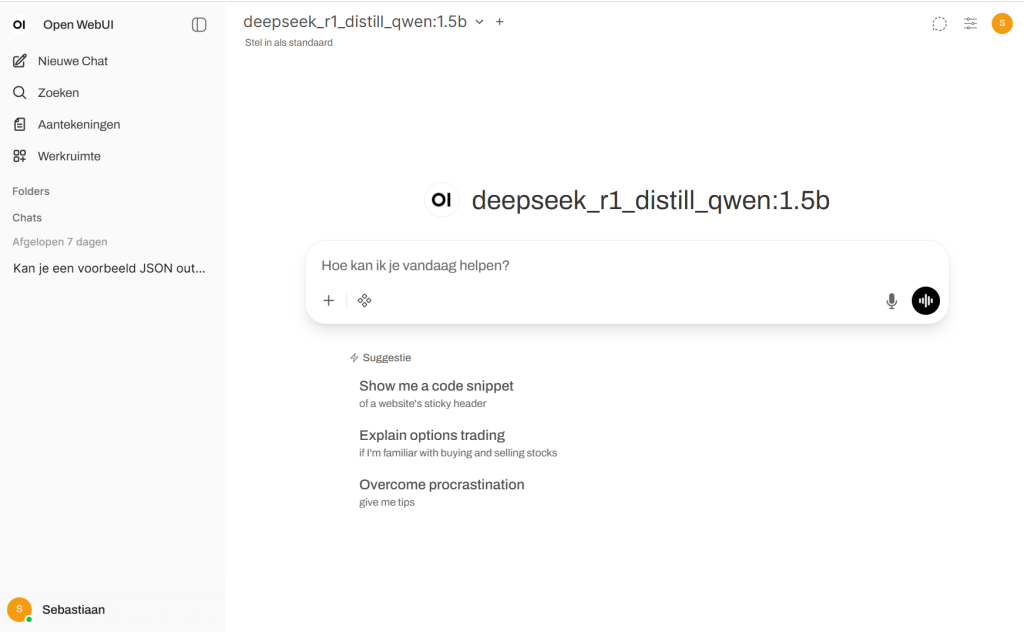
website: https://openwebui.com/
github: https://github.com/open-webui/open-webui
Installatie van Open WebUI #
Download the Open WebUI image required to run the frontend layer:
docker pull ghcr.io/open-webui/open-webui:main
Ensure that hailo-ollama is already running. Then, start the Open WebUI container and connect it to the hailo-ollama backend server:
docker run -d -e OLLAMA_BASE_URL=http://127.0.0.1:8000 -v open-webui:/app/backend/data –name open-webui –network=host –restart always ghcr.io/open-webui/open-webui:main
autostarten van de Open WebUI via docker:
sudo systemctl enable docker
Synchronizing state of docker.service with SysV service script with /usr/lib/systemd/systemd-sysv-install.
Executing: /usr/lib/systemd/systemd-sysv-install enable docker
Gebruiken van Open WebUI #
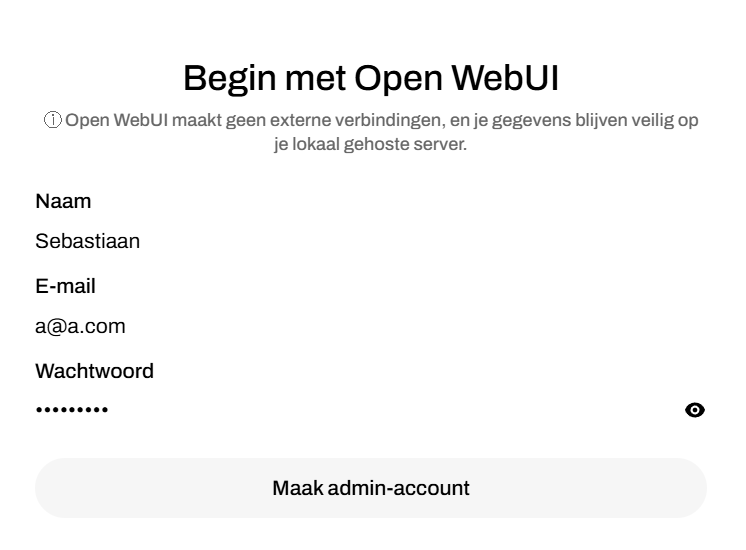
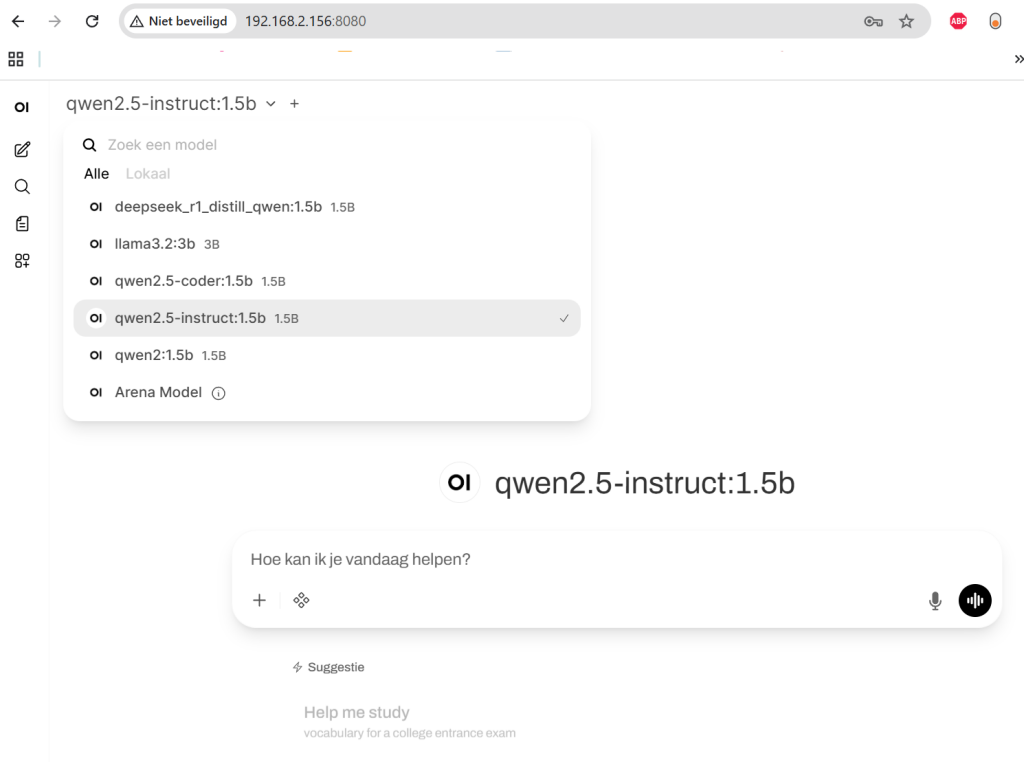
Open WebUI draait op poort 8080, via een browser kan je IP:POORT gebruiken om LLM’s te gebruiken met Open WebUI
De eerste keer zal gevraagd worden om een lokaal account aan te maken:
Je kan daarna een model selecteren en beginnen aan een chat:
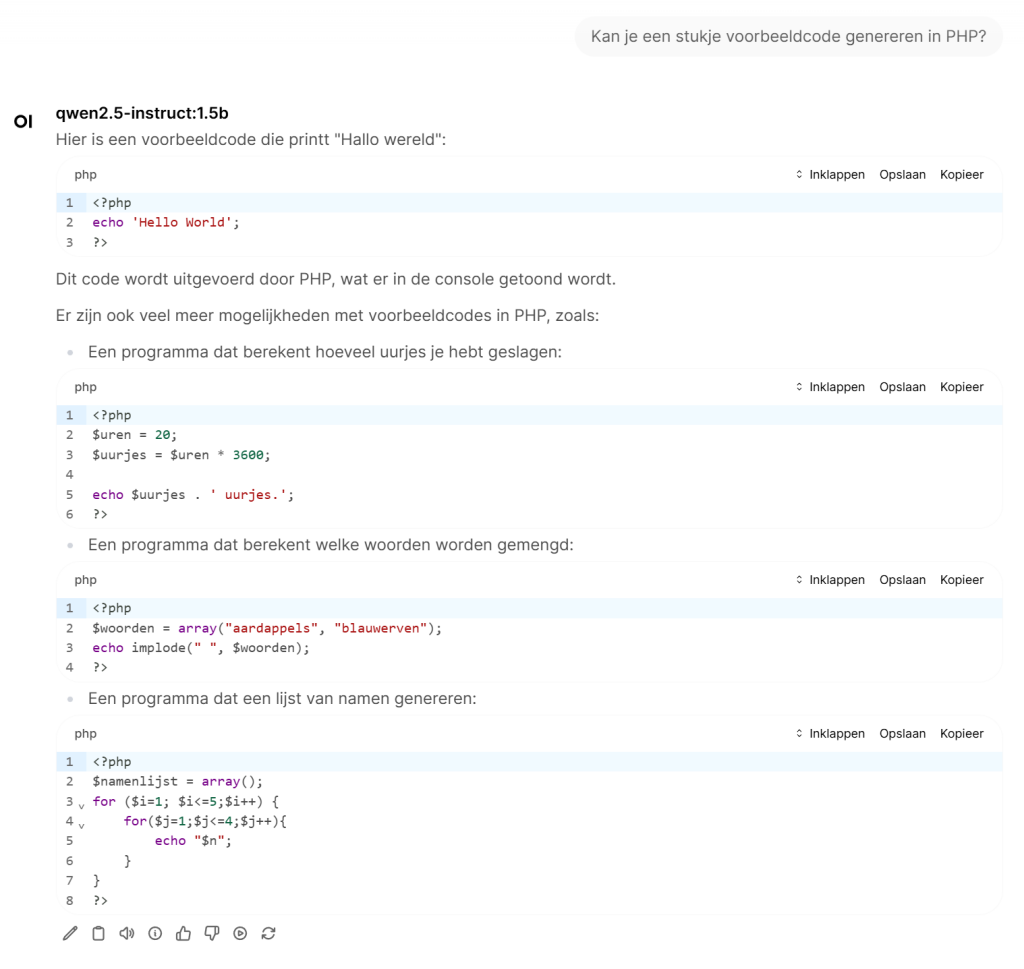
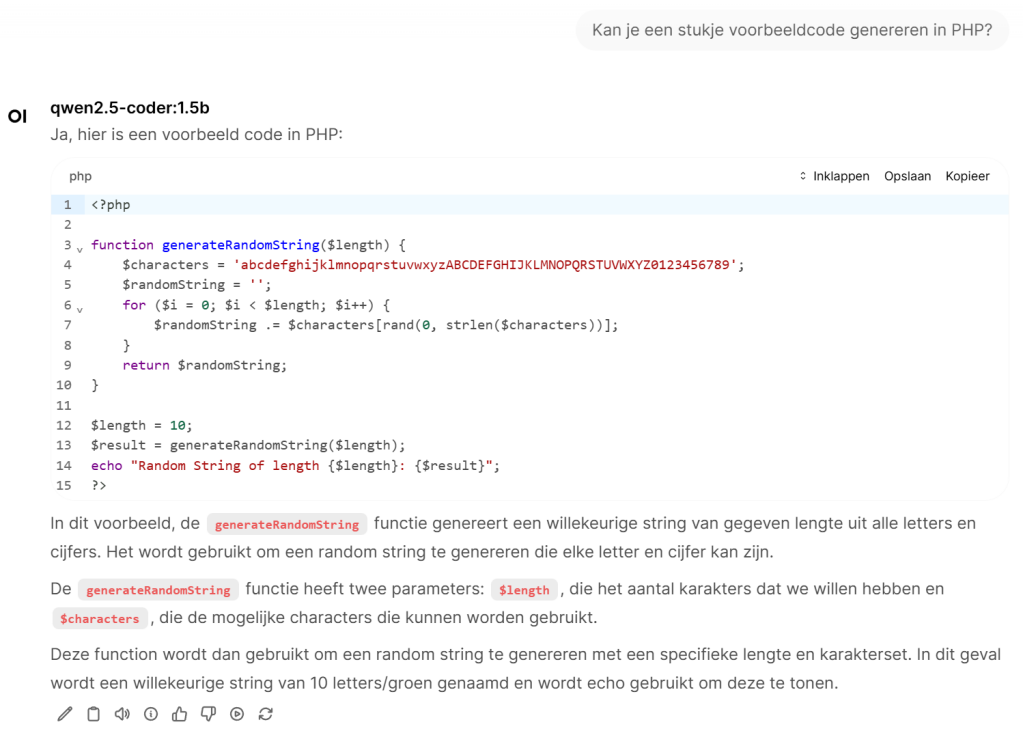
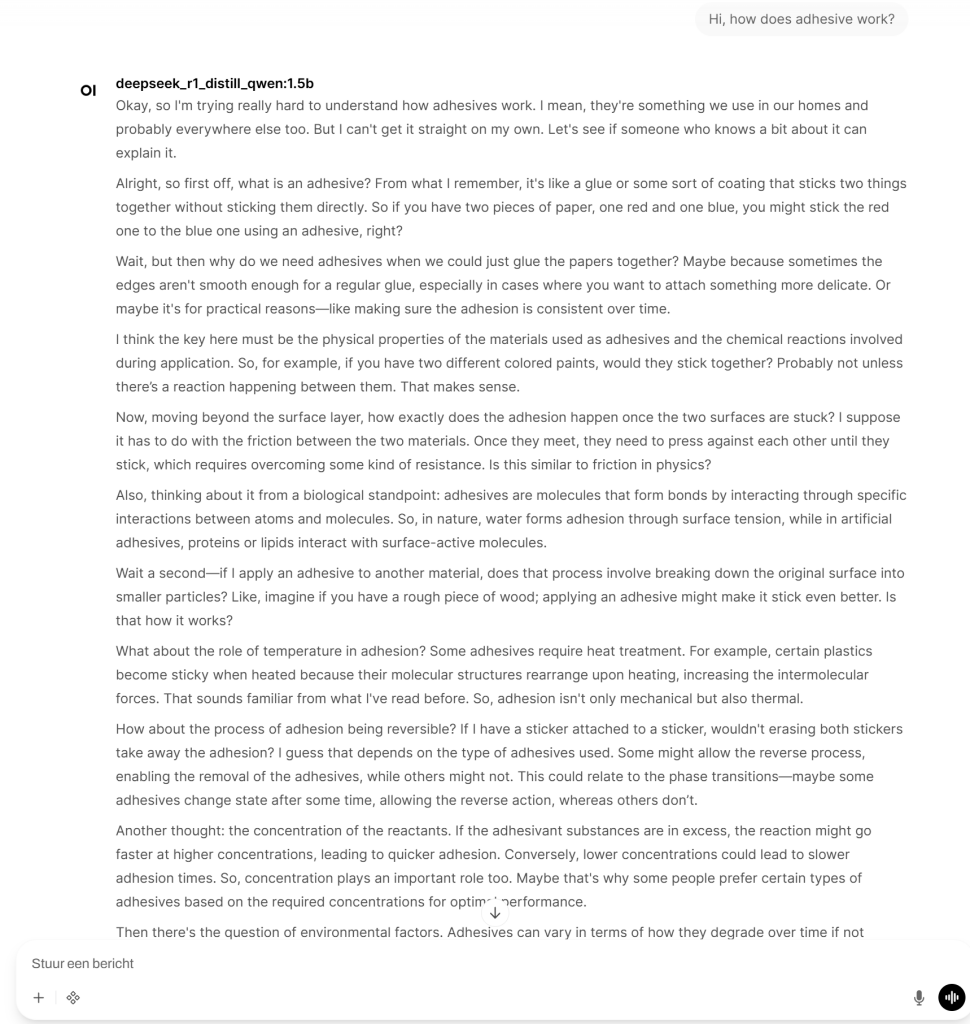
Voorbeelden Open WebUI #